Steps6
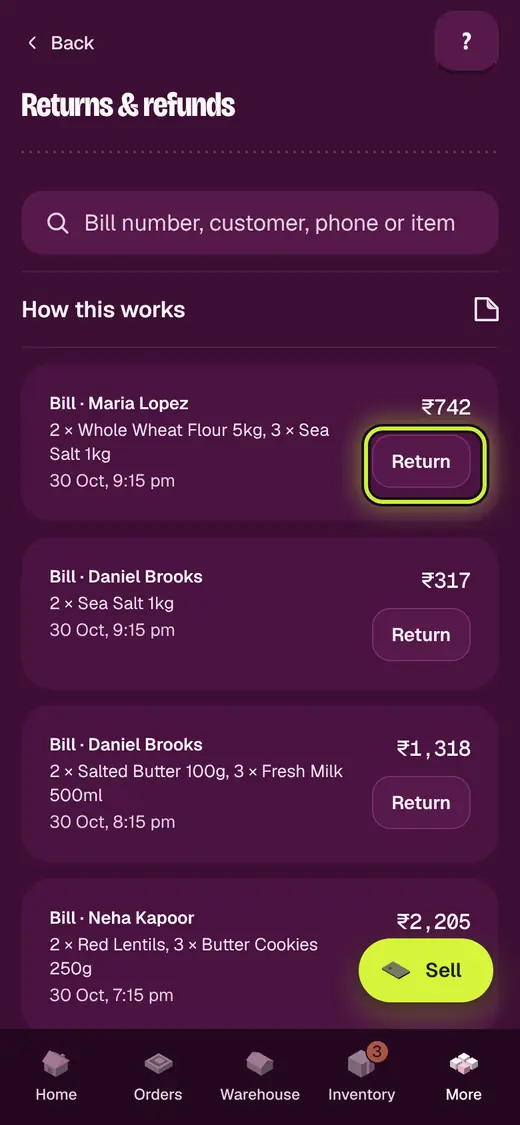
- Tap Returns.
- Find the bill by its number, the customer, their phone or an item.
- Tap Return.
- Set how many of each item are coming back with − and +.
- Check how the money goes back. It starts on the way they paid.
- Tap Refund. The button shows the amount.
If it stops you
Refund needs the shop admin: your refund is above your limit. Tap Ask for approval.
Good to know
- Bills are never deleted. A return keeps the record.
- Each bill says what it can still do. Exchange means it can only be swapped.
- A bill with no button says why: Final sale, no returns, or the return time ended.
- Inside a bill, an item that can't come back says why: No returns on this item, Already returned, or the day its return time ended.
Still stuck?
In the app, tap ? on the screen you are on and ask in your own words. Or email support@okount.com. A person replies in writing. Never send your PIN, code or card number.